

Agents
Proof of changes
Have an agent exercise every pull request in a live session and report back before a human reviews it
Every time someone opens a pull request (PR), Revyl can install that PR's build in a live session, run through the changed flows, and post a verdict — ready, failed, or inconclusive — on the PR. Reviewers get a live look at whether the change actually works before they read a line of code.
Set up with an agent
Paste one prompt and your coding agent does the rest.
Setup prompt
Turn on Revyl proof of changes for this repository's pull requests.

Read https://docs.revyl.com/agents/proof.md and follow it. It's the current Revyl guide for this, so prefer it over anything you remember about Revyl.

The repository needs the Revyl GitHub App first; I'll install it with my GitHub login. In `.revyl/config.yaml`, point `pr_review.build.profile` at a `pull-request` profile that builds for a simulator or emulator, with each recipe's `app_id` set. Under `pr_review.proof_of_changes`, set `enabled: true`, keep the Revyl harness, and add one `always_verify` check: the app launches to its first screen. If `revyl github status` shows this project as not published, ask me before you run `revyl config push`: Revyl doesn't prove a pull request that adds a new project's config until that config merges.

You're done when `revyl config validate` passes and a small pull request you open, not a draft, gets Revyl's verdict comment.

Ask me before anything that needs my login or approval.
What you'll see
Once it's on, every PR with a build gets one comment that updates as new commits land (or, if you've configured it that way, the same block on the PR description instead). It includes:
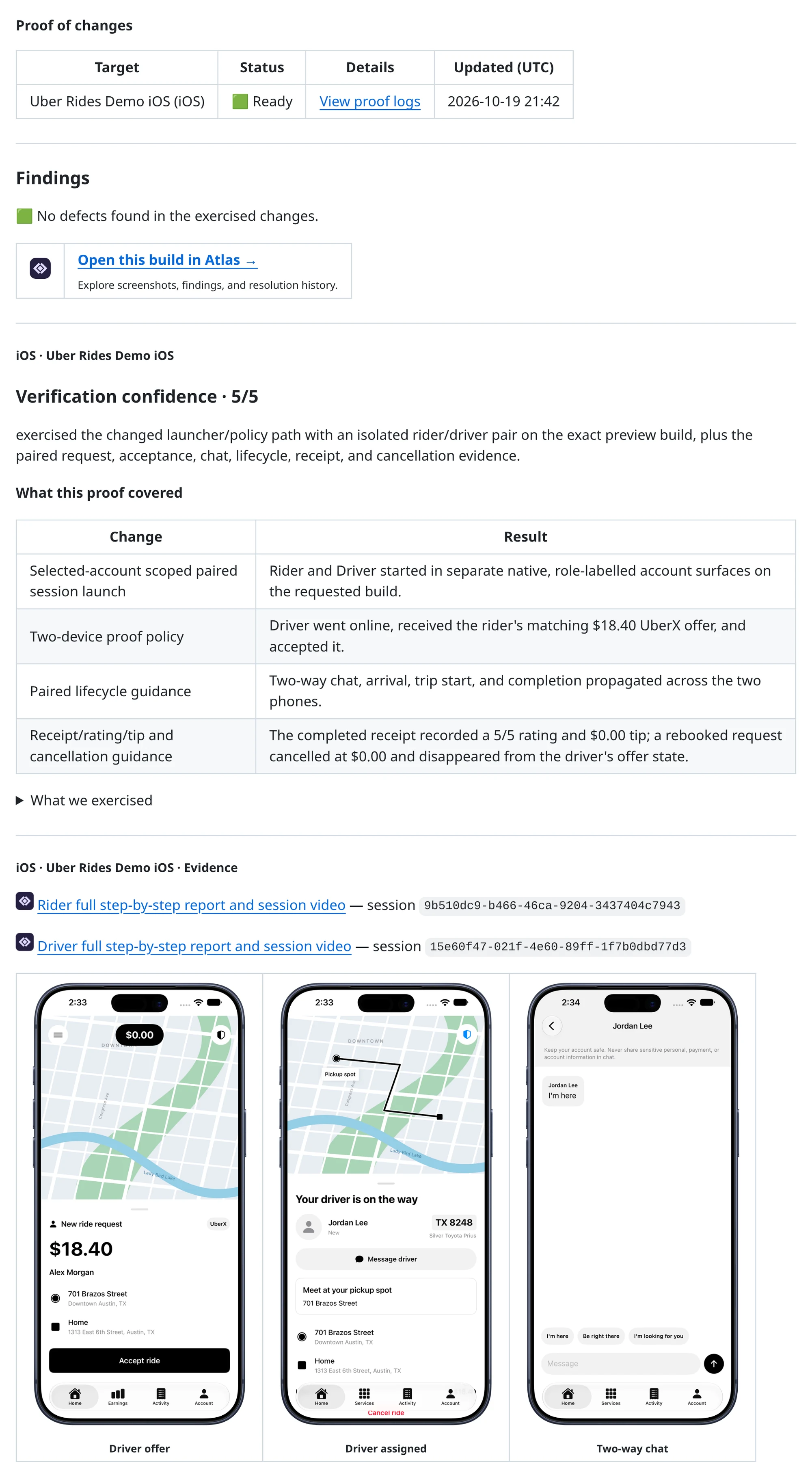
- A verdict per build target — Ready, Ready with polish, Partial coverage, Ready with issues, Failed, Inconclusive, or Not started
- Ready: The agent exercised the change on a device and found no open findings.
- Partial coverage: The run passed, but its verification confidence is 2/5 or lower, so the agent exercised little of the changed behavior this target can reach. An open issue or blocker still shows as Ready with issues or Failed.
- Ready with polish: The change works, with a low-severity polish finding to consider.
- Ready with issues: The change works well enough to review, with a non-blocking issue to inspect.
- Failed: The agent found an open blocker.
- Inconclusive: Nothing useful was observed — for example the device never started, or setup blocked the run before the change could be exercised.
- Not started: The Cursor agent was never launched, for example because the Cursor key can't see the repository. The row says why and what to change; push again once it's fixed.
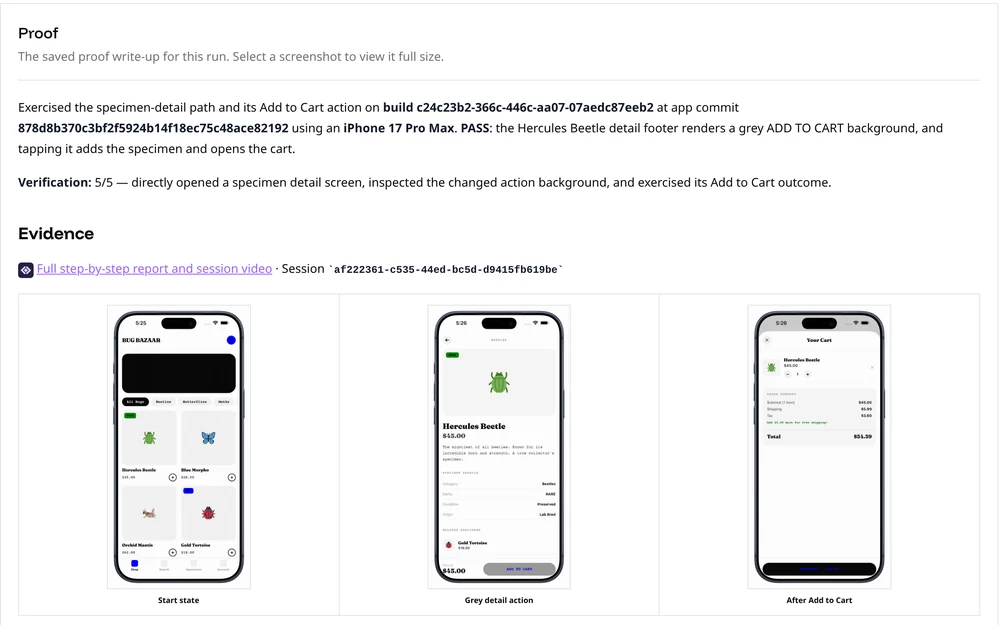
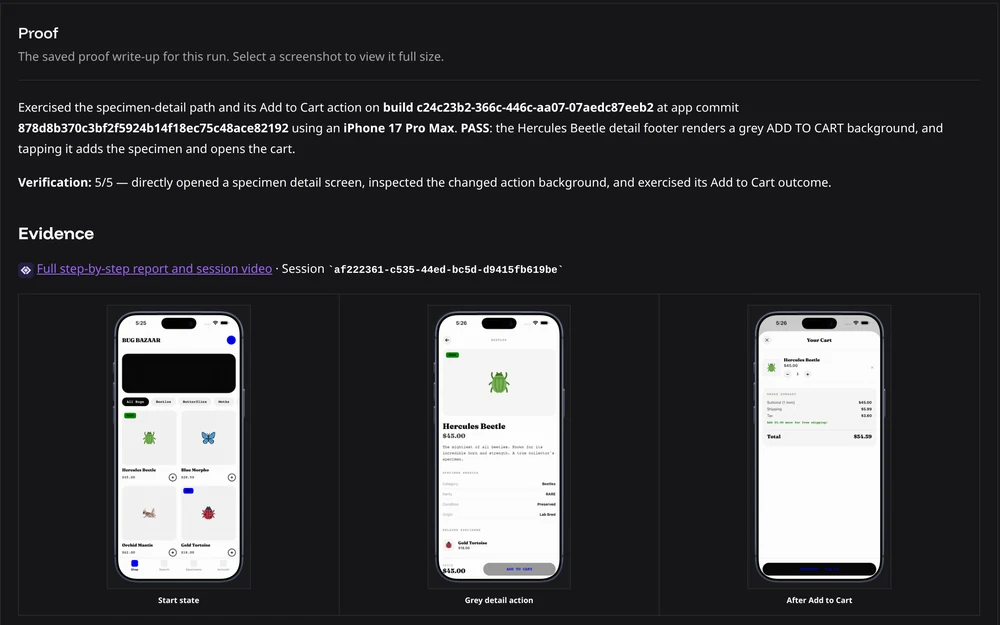
- A short write-up of what was exercised and what the app did
- A Verification confidence score from 1/5 to 5/5, measuring how much of the changed behavior the agent exercised directly in that build, on that platform. Defects never lower the score — they land in the findings section instead. Changes the build cannot show by design — code for another platform, a background job or server process with no visible result, an external system, tests and tooling, dependency internals — don't lower the score either. Gaps from missing data, an account state, a feature flag, sign-in, or device hardware still do.
- Coverage sections under the score: What this proof covered lists each changed behavior the agent exercised and its result, Out of reach names what this target could not exercise and why, and To make this provable names the concrete step (a fixture, an account state, a configuration value) that would let a later run reach it. When that step is Revyl setup, it names the config: launch variables, the deep link, or the web sign-in link in
session.auth_bypass, asession.before_scriptthat seeds data for a mobile app (Web sessions don't run it, so a Web proof's data must already exist in the preview), or instructions inpr_review.proof_of_changes.system_prompt. - Screenshots of the moments that matter
- A link to the full session recording — no login required
- For Web builds, Open preview appears when the proof's session is allocated. It opens that session live and keeps the same link for its report and replay after the session stops. It does not start another session. Web is in alpha; to add it to your organization, email support@revyl.ai.
- A View proof logs link, so you can watch the device live while the run is in progress and review its proof write-up in Revyl afterwards. The Proof section below Run logs shows the write-up, captioned screenshots, and report links on the same page. Select a screenshot to view it full size. The section updates when the run's write-up is available.
- A findings section. Successful runs with no findings say so explicitly and still link to Atlas scoped to the exercised build; confirmed problems link their screenshot-grounded annotation threads.
Re-run a proof
When a proof on the pull request's latest commit has finished, the Revyl block shows a Re-run box for it, named by platform, such as Re-run iOS proof or Re-run Web proof. When more than one of the project's proofs has finished, a Re-run all proofs box comes first and re-runs every one of them. The boxes follow the platforms your project's config sets up. Tick a box to run those proofs again on the same build; the table then shows who asked while the new run is in progress. A Web proof re-runs against the same preview, so Revyl first checks that a Web URL build's deploy still answers. If it doesn't, that proof isn't re-run, and the other proofs still re-run.
To steer the agent, comment on the pull request with the command at the start of the first line and your guidance after it:
@revyl rerun sign out first, then check the welcome screen in dark mode@revyl rerun <guidance>or@revyl retry <guidance>re-runs every finished proof. Putios,androidorwebright afterrerunto re-run one platform, as in@revyl rerun ios check the subtitle. Guidance can also continue on the lines below.@revyl <guidance>re-runs every finished proof with that guidance. Revyl reserveshelpandrunas commands, so start guidance with either word after@revyl rerun.@revyl helpreplies with these commands./revylworks the same as@revyl. On GitHub,@revyllinks to an unrelatedrevylorganization, and mentioning it notifies nobody.
Guidance applies to that re-run only and is limited to 4,000 characters. It can't narrow the proof below what the pull request changes or override your repository's proof settings, and the write-up says whether the agent followed it.
On the pull request, only collaborators with write access to the repository can re-run proofs. An accepted re-run shows in the table as re-running, requested by you, and Revyl replies with the reason when it can't re-run a proof, for example while that proof is still running. A finished proof can be re-run as many times as you like. Re-runs use device time like any other proof, and a Cursor or Capy proof re-runs on Revyl's agent.
You can also re-run a proof from Revyl. On the proof's details page, select Re-run beside its status, add guidance if you want, and select Re-run proof. That re-runs this proof alone, under the same rules as on the pull request: while it can't be re-run, the button is disabled and says why, such as while the proof is still running, once the pull request is closed or has a newer commit, or when a Web proof's deploy no longer answers. Re-running from Revyl requires Member access or higher, and the pull request's table then shows the re-run as requested by you in Revyl.
Find your proof runs
Open Cloud Agents → Proof of Changes to browse your organization's proof history. The list includes Revyl, Cursor and Capy runs, with the pull request, tested commit, app/platform, and proof status.
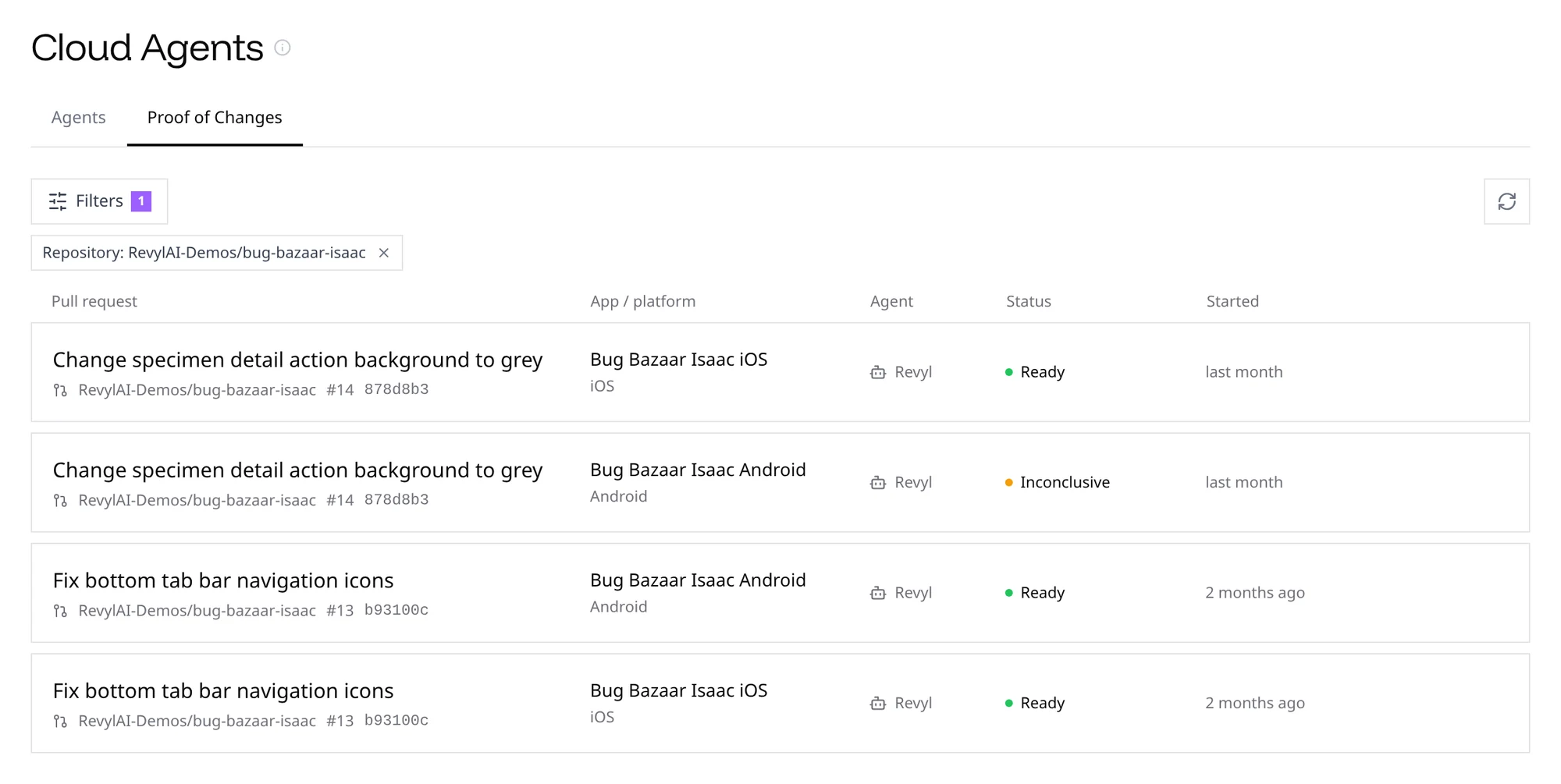
Open a run to view its existing proof details; Cursor runs also offer Open in Cursor when the agent link is available. Capy runs offer Open in Capy, which opens the Capy thread the proof runs in, and their Run logs show that thread's transcript: the prompt, Capy's messages, and the tools it called. The Capy write-up comment links to the same thread. A re-run proof says who re-ran it, both in the list and on its details page: while it runs, it reads as re-running, requested by that collaborator, or by a teammate in Revyl, and once it finishes it also shows when they asked and the status the proof had before. The details page quotes any guidance they gave. Proof history requires Member access or higher. Inside an app, its Cloud Agents page has the same Proof of Changes tab, limited to that app's runs.
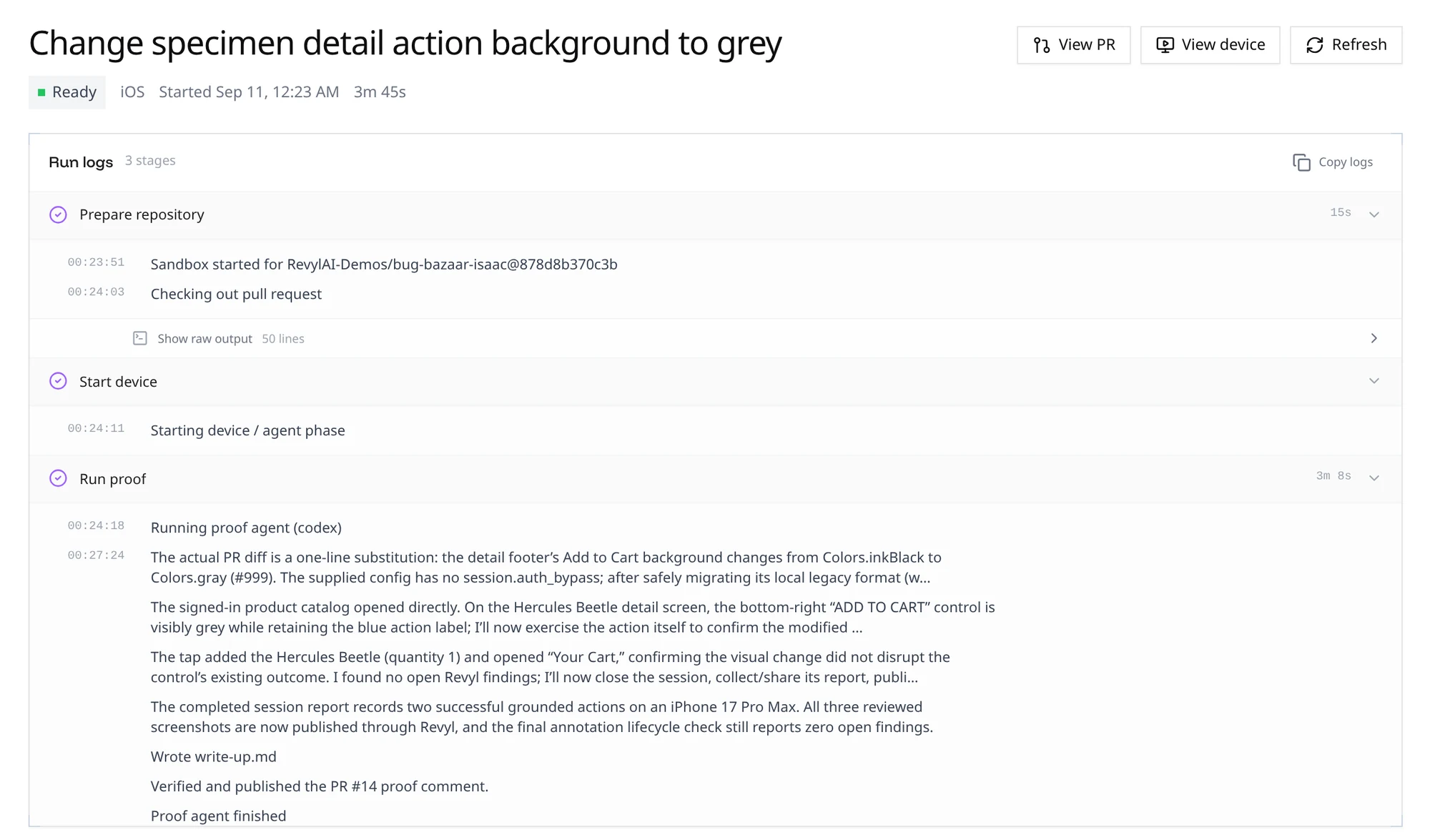
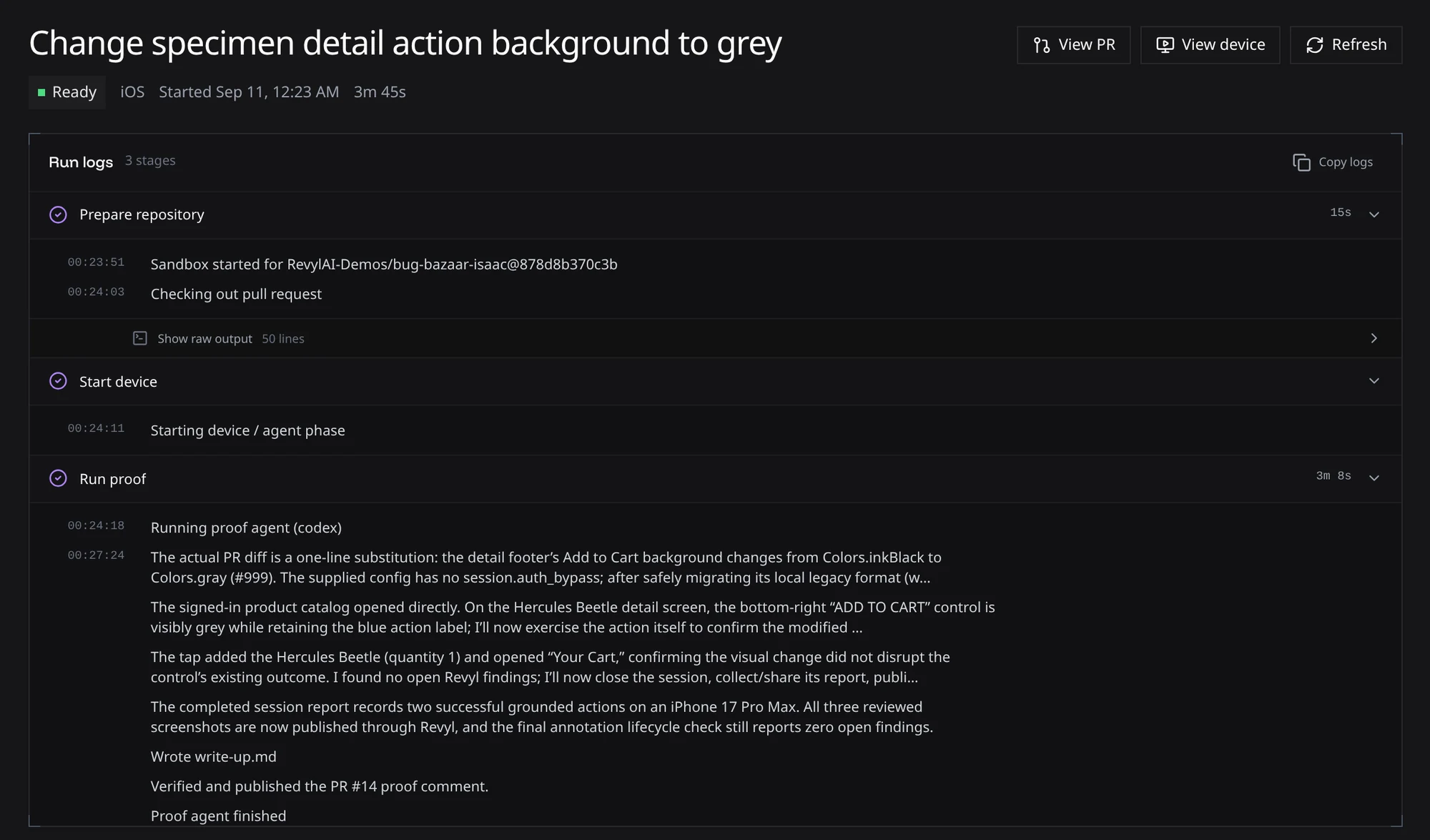
Open Filters on the right, then use All repositories to search repositories with recorded proof runs and select one. Use Load more when additional repositories are available. Historical repositories remain selectable even when the GitHub integration is disconnected. The filter applies to the full proof history, not just the visible page. In the same menu, use Proofs per page to choose 10, 25, 50, or 100 results. Changing either control returns to the first page. Select All repositories again, remove the repository chip under the toolbar, or choose Clear all in the menu to clear the filter. Page controls appear below the results when you scroll to the bottom. From proof details, Cloud Agents in the header returns to Proof of Changes. When the run's app is known, the header and sidebar switch to that app instead, and Cloud Agents returns to that app's Proof of Changes tab.
Cloud Agents still opens on Agents by default. Selecting Proof of Changes doesn't change your agent filters or start a new run.
Getting started
- Connect your repo via the Revyl GitHub App
- Turn on Proof of Changes through the dashboard or enable
pr_review.proof_of_changesin the project's.revyl/config.yaml:
pr_review:
  enabled: true
  build:
    kind: revyl
    profile: pull-request
  proof_of_changes:
    enabled: true
    harness:
      kind: revyl
The named profile must exist under build.profiles.
Once the project is published (with revyl config push, from the dashboard, or
by merging the config to the default branch), Proof of Changes runs on the next
pull request. A pull request that adds a new project's config is only
validated, and proof starts after it merges.
The Revyl agent uses a bounded excerpt of the author-written portion of the
pull request description as supporting context for the change's intent,
expected behavior, and proposed test plan. The diff and your configured
always_verify checks remain authoritative.
If you cannot install the Revyl GitHub App or you use a different SCM, you can use the Proof of Changes via Cursor Cloud guide to set up Proof of Changes without the App.
Authentication and session prep
We recommend bypassing authentication so
each run starts from a signed-in state. Set this up with the
session.auth_bypass field in your config,
or in the dashboard: an app's Pull requests settings link to its
Authentication bypass on Session settings.
To run a script before an iOS or Android device session starts — for example,
seeding test data — use the
session.before_script field. It does not
run for Web sessions. For Web, use
session.auth_bypass.sign_in
for worker-minted sign-in. Any data a Web proof needs must already exist in the
preview environment, for example seeded by the preview's own deploy or a
test-login route.
Signing in is not always enough: the proof can only exercise screens its account can reach. See Give Proofs An Account That Can Reach The Change.
When an iOS or Android proof is Inconclusive because it stopped at sign-in, or because its account could not reach the change, the PR comment adds a collapsed setup section under the proof. It says what to add or fix for that case and links to the auth bypass guide.
Network allowlisting
If your services restrict access by source IP, allow the following outbound
address for the Revyl proof agent (harness.kind: revyl):
| Source | IPv4 address | CIDR allowlist entry |
|---|---|---|
| Revyl proof sandbox | 52.8.130.100 | 52.8.130.100/32 |
This covers requests originating from the proof sandbox, including API calls made by session-preparation scripts running there. The address is shared across Revyl proof sandboxes, not dedicated to your organization. Keep your service's normal authentication and authorization requirements in place.
Requests made by your app on an iOS or Android device originate from the device infrastructure, not the proof sandbox. This address does not cover device traffic, remote build runners, or Cursor Cloud Agents. Contact Revyl for the network requirements of those environments.
Advanced configuration
You can set additional configuration parameters from the PR-review settings
dashboard, or under pr_review.proof_of_changes in .revyl/config.yaml.
By default, proof runs execute on the Revyl agent. To follow a run as a
Cursor Cloud Agent thread instead, connect a
Cursor Cloud integration and set
harness.kind to cursor. After publishing or committing that policy, run
revyl config authorize-cursor-proof.
Capy is in alpha. To add it to your organization, email support@revyl.ai.
To use a connected Capy project instead, set harness.kind to capy.
Capy accepts the optional harness.model_id field. When it is omitted or null,
Capy uses GPT-6 Luna in fast mode with high reasoning. The fixed choices are
openai/gpt-6-luna, openai/gpt-6.1-sol, anthropic/claude-opus-5-5, and
anthropic/claude-sonnet-5-5.
Capy also accepts the optional harness.capy_project_id field, shown as
Capy project in the dashboard. Leave it out (Automatic) to run in the
first enabled Capy project that checks out the repository. Set it to pin one
project when several check out the repository. A pinned project that is no
longer enabled on the connection, or that does not check out the repository,
fails the proof with that reason instead of falling back to another project.
| Field | Role |
|---|---|
enabled | Turn proof runs on or off. |
harness.kind | Which agent runs proofs: revyl (default), cursor, or capy. |
harness.model_id | Optional Cursor model, or one of Capy's fixed model IDs; rejected for Revyl. |
harness.capy_project_id | Optional Capy project to run in; Capy only. |
always_verify | Natural-language invariants verified on every run in addition to the diff. |
system_prompt | Extra guidance prepended to proof runs. |
See the full pr_review field reference on the
GitHub integration page.