

Runtime
Sessions
Run your app in a live session in a Web browser (alpha) or on an iOS simulator or Android emulator
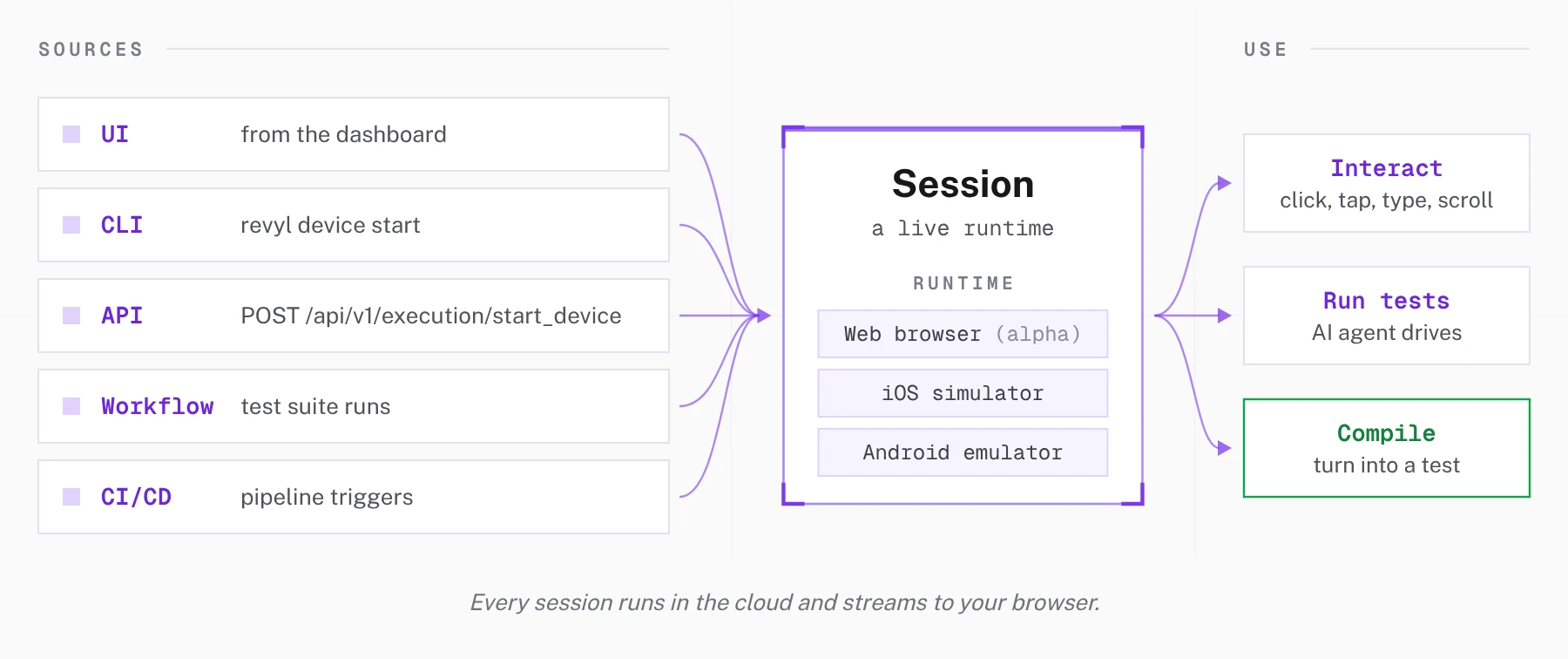
A session is your app running live in Revyl's runtime and streamed to your browser: in a Chrome browser for Web apps (alpha), or on an iOS simulator or an Android emulator. Start a session from the dashboard, the CLI or API, or an agent.
Use sessions to:
- explore your app without installing anything locally
- let agents validate live changes on device
- power the dev loop to validate local changes on a cloud device
- provide reviewers with live access to a specific build
- enable designers to confirm the implemented experience against the intended design
Starting a Session
Sessions can come from anywhere:
| Source | How |
|---|---|
| UI | Start from the dashboard |
| CLI | revyl device start |
| API | POST /api/v1/execution/start_device |
| CI/CD | Triggered from a pipeline |
| Workflow | Spawned by a workflow run |
From the Dashboard
- Go to Sessions and click Start session
- Pick a platform (iOS or Android), device model, and OS version
- Optionally pick an App and its Build to pre-install. It starts from the page you came from, else the app's default branch on Automatic.
- Set an idle timeout (5m, 15m, 30m, or 1h)
- Click Start session
Organizations with Web (alpha) also see Web; see Web sessions. Organizations with Computer (alpha) also see Computer (macOS); see Computers.
The device boots and streams to your browser on both iOS and Android. Non-default device targets (specific models or OS versions) may take longer to provision. Tap, swipe, type, and interact with it like a real phone.
Web sessions
Web is in alpha. To add it to your organization, email support@revyl.ai.
- Click Start session, or Start in the top bar, and pick Web as the platform
- Select a Web app, then a branch and build. Automatic opens the branch's default build
- Pick a Viewport: Desktop 1280×800 or Mobile 390×844
- Click Start
The app opens in Chrome and streams to your browser. Organization members who can control the
session can click, scroll, type, and press Enter, Tab, Backspace, Escape, and the arrow keys in
the live viewer; each input is recorded as a manual control step, and typed text never appears in
the report. From the CLI, use revyl device start --platform web. See Web builds
for the builds a Web session can open, and the device quickstart
for agent control.
From an Agent via the CLI
Install the Agent Skill and ask your agent to Start a new session of your app using Revyl
Active Sessions
The sessions page shows all live sessions with real-time status, elapsed time, and an idle indicator. Sessions that sit idle for more than 2 minutes get flagged. You can stop any session from the list.
Web sessions show Web · Chrome with a browser icon and the app name when available. The platform filter and the Overview device-time breakdown include Web.
Session History
Past sessions show device info, duration, source, user, and the branch/build selected when they started. Filter by app and branch; installing another artifact later does not rewrite the initial build. From here you can:
- View the session recording and device logs
- Compile the session into a test (if it has recorded actions)
- Copy the session ID for API/CLI use
Use All users above the session list to show only your sessions (Me) or a teammate's. Choose Proof of changes from All sources to find adaptive report sessions across launch sources. You can combine it with the user, platform, and status filters. The user column shows the person or partner when available; otherwise, automated sessions show Proof of Changes, PR preview, or PR workflow. GitHub-triggered sessions show only the pull request number beneath that label when available. Sessions with no known person or automation show Unknown starter.