

Tests
Create a test
Create a test in the visual editor, from a recorded session, or with a coding agent.
In the visual editor
Tests can be created with the Revyl visual editor. The visual editor is where you build, run, and debug tests against a live device.
The editor has four areas:
- Device Screen (left): live view of the simulator/emulator
- Editor Panel (center): your test steps with tabs for Editor, YAML, and Variables
- Device Logs (right): real-time application logs captured from the device
- Test Controls (top): device info, settings, and the Run Steps button
Create a new Test
From the Tests page, click Create test in the top right.
Fill in the creation modal:
- Test Name: a descriptive name for your test
- Platform: iOS or Android
- App: select an existing app, or create one inline
- Build: a branch and a build on it, starting on All branches · Latest build, the newest build on any of the app's branches
- Tags: optional labels for filtering (e.g.,
smoke,regression) - Advanced Settings: AI config and YAML import (optional)
Choose Default branch under Build so runs from the CLI, MCP, and CI try their Git branch first. See New saved choices.
After clicking Create test, you land in the test editor.
Start and Run Steps use the test's saved Build choice. Run async with a build… in the editor's menu runs the test once on another build and keeps the saved choice. See Build branches.
Adding Steps
Click a step type button at the bottom of the editor panel to add new steps. Each step type defines a different action or check your test performs. Step types: Instruction, Validation, Extraction, Script, Manual, Loop, Decision, Module.
See Step Type Reference for what each type does.
Variables
Use variables to avoid hardcoding values like test accounts, URLs, or search terms directly into your steps — define them once and update them in a single place instead of editing every step that uses them. Switch to the Variables tab to create key-value pairs, then reference them in steps with {{var_name}}. For org-wide variables, see Global Variables.
Running your test
To run your test, start the device by clicking on the device screen or clicking the Start button. You can then click the Run Steps button to run all of the steps sequentially, or click the play button by each step to run each step individually. The device logs will show what is happening live as each step is running.
Device
The device auto-connects when you open the editor. Boot times are typically 1–5 seconds on both iOS and Android (longer if you pick a non-default device target). Use Stop device / Start device to reset. For more on how sessions work, see Sessions.
Step Actions
Hover over any step to reveal quick actions: run it individually (useful for iterating on a single action without re-running the whole test), duplicate, delete, or drag to reorder.

Multi-Select
Click and drag across several steps to select them as a group. Selected steps highlight, and a popup toolbar lets you delete, duplicate, or drag the whole group at once — plus:
- Save as module: turn the selection into a reusable module. Revyl replaces the selected steps with a single Module step pointing at your new library entry.
YAML
All tests are saved as YAML files which makes it easy to save to repos, export into CI/CD pipelines, and edit via agents. The YAML tab shows the current YAML representation of your test. See YAML Test Format for more information.
From a recorded session
Instead of writing steps by hand, interact with the live app and let Revyl generate test steps from your actions.
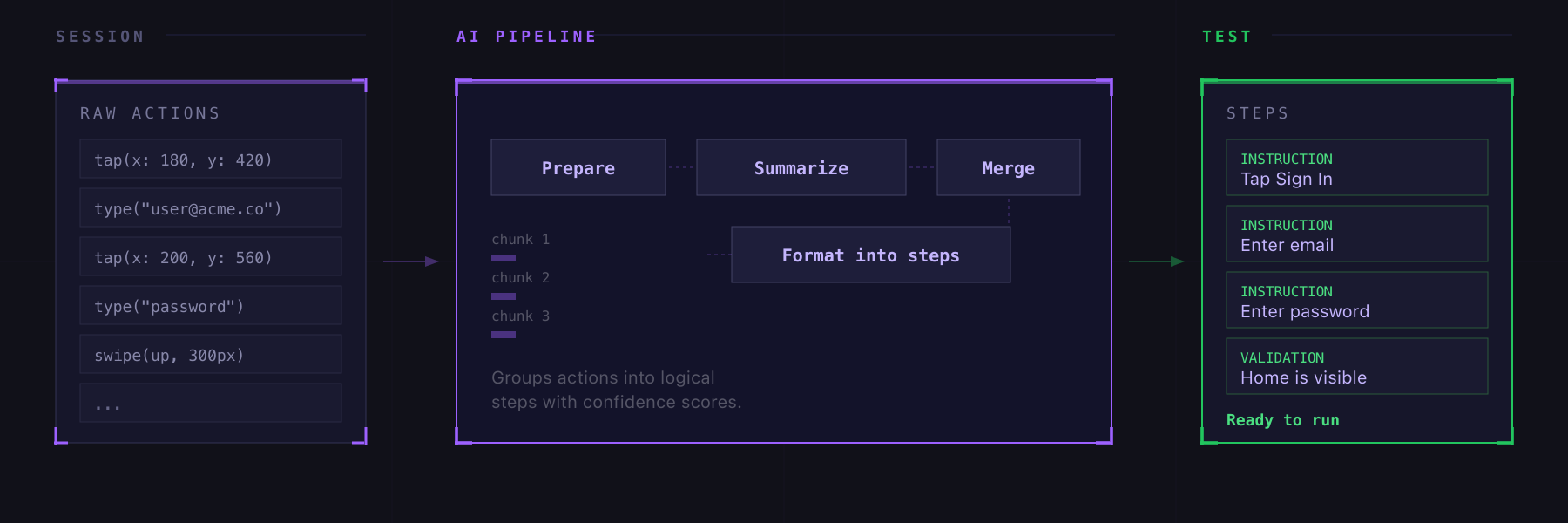
There are two ways to do this: recording live inside the test editor, or compiling steps from a past session's history. Both produce the same kind of output, but fit different workflows:
| Recording Live | Session Compile | |
|---|---|---|
| Where | Inside the test editor | From the sessions history |
| When | While building a test | After an exploratory session |
| Result | Steps added to current test | New test or module created |
| Scope | Short, focused interactions | Full sessions or time ranges |
Recording Live
Create a test and open it in the editor first, as in Create a new Test.
Start the Recording
- Start the device by clicking on the device screen or clicking the
Startbutton - Click the Record button
- Interact with the device: tap buttons, type text, swipe, navigate
- Click Stop when you're done
Revyl captures your actions during the recording window and sends them through the AI compile pipeline. After a few seconds, you get a set of generated steps.
Reviewing Generated Steps
After recording stops, a review panel shows each generated step with:
- Step type (instruction, validation, manual) that you can toggle
- Description in plain English, editable inline
- Confidence score from the AI
You can also:
- Retry with feedback if the results aren't right ("focus on the login flow", "ignore the settings detour")
- Copy as YAML for use in CI/CD
- Save as module to reuse the steps across tests
When you're happy with the result, click Add to test to insert the steps into your test at the current position. You can also Save as module to reuse the recorded flow.
Session Compile
Session compile takes your raw device interactions and uses AI to generate structured, natural-language test steps. Explore your app freely, then let Revyl turn that exploration into a test you can run again.
How It Works
- Start a session and interact with your app normally
- Stop the session (or let it idle-timeout)
- From the sessions history, click Make a test on any session that has recorded actions
- Revyl's AI analyzes your actions, groups them into logical steps, and generates natural-language instructions
- Review the generated steps in the editor as described in Reviewing Generated Steps.
The Compile Pipeline
The compile runs through several stages:
Queued > Preparing > Summarizing > Merging > Formatting > Complete
Each stage shows progress. If you close the modal while it's running, a badge appears so you can come back to it.
Partial Compile
You don't have to compile the entire session. Select a time range to compile just a portion, which is useful for long exploratory sessions where only part is relevant.
Tips
- Testing via recorded sessions works best when:
- You're exploring a new feature and want to turn that exploration into a regression test
- A QA team member found a bug manually and wants to create a reproducible test
- You want to bootstrap tests quickly without writing steps from scratch
- Keep recordings short and focused on a single flow. It's easier to record login, then record checkout, than to record everything at once.
- The AI works best when your actions are intentional. Avoid aimless scrolling or backtracking during a recording.
- You can record multiple times and build up a test incrementally.
With an agent
- Install the Revyl CLI
- Navigate to the repo of your project
- Install the necessary Agent Skills specific to your agent.
- Start your agent
- Ask your agent to write Revyl tests per your specification. The agent will create a Revyl test, iterate on it, and produce a report.