

Tests
Library
Reusable modules, variables, scripts, files, and launch configuration shared across tests
The Library holds org-wide resources that any test can use. Go to Library in the sidebar to manage them.
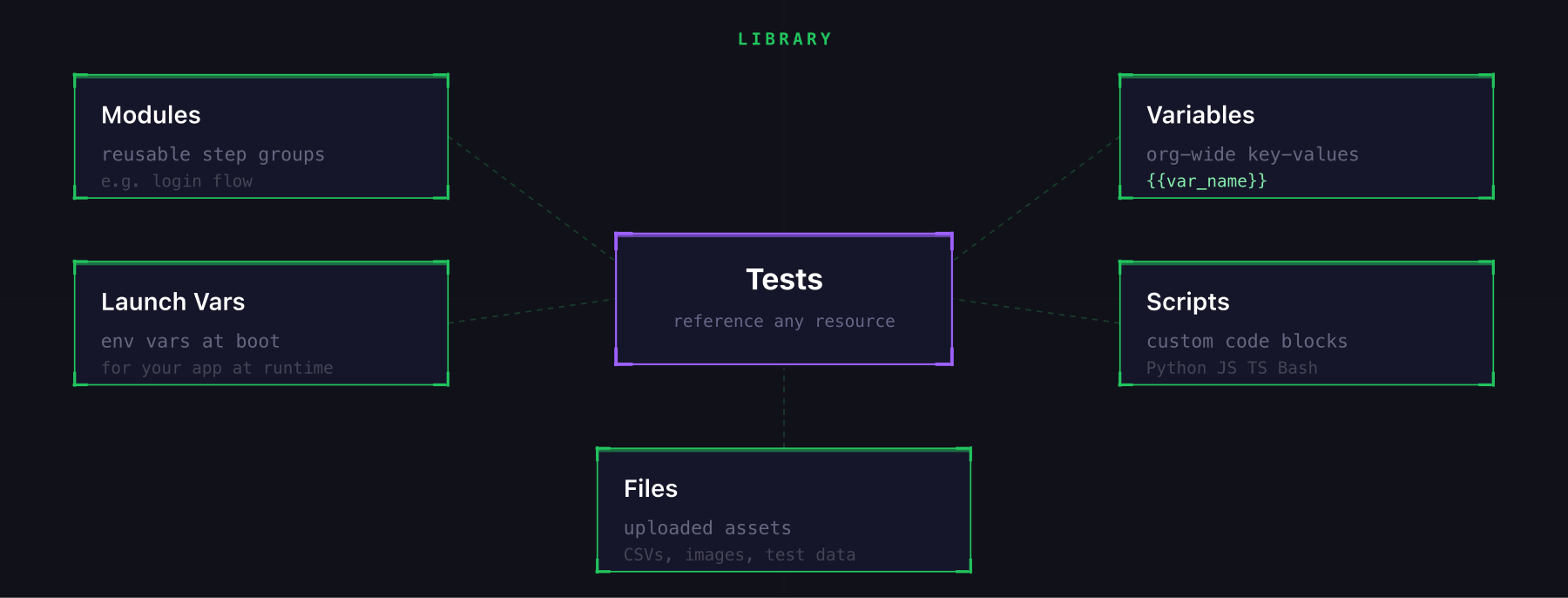
- Modules: reusable groups of steps you can insert into any test
- Launch Configuration: environment values and ordered iOS argument sets applied at app launch
- Global Variables: org-wide key-value pairs accessible via
{{var_name}} - Scripts: custom code blocks available to Script steps
- Files: uploaded assets (CSVs, images, etc.) accessible during test runs
Modules
Modules let you group steps together and reuse them across tests. They're useful for common flows like login, navigation, or setup sequences.
Modules can contain conditionals and loops, but cannot import other modules.
Creating a Module
From the Library:
- Go to Library > Modules tab
- Click New module
- Name it and add steps (same step types as the test editor)
- Save. The module is now available org-wide.
From the test editor:
If you've already written a flow you want to extract, select multiple steps in the editor (click and drag, or shift-click) and a popup toolbar appears. Click the Module button to turn the selection into a new module. Revyl replaces the original steps with a single Module step that references your new library entry.
Using a Module in a Test
In the test editor, add a Module step and select the module by name. The module's steps execute inline during the test run. Changes to the module automatically apply to all tests that reference it.
Each module shows how many steps it contains and how many tests currently use it, so you can gauge the impact of edits before saving.
Global variables
Global variables are org-level key-value pairs available in any test via {{var_name}}.
Creating a Variable
- Go to Library → Variables tab
- Click New variable
- Set the name (e.g.,
email) and value (e.g.,test@example.com) - Optionally add a description
Using Variables in Tests
Reference any global variable in a step instruction with double braces:
Type {{email}} in the email fieldGlobal vs Test Variables
- Global variables (Library): shared across all tests in the org. Edit once, applies everywhere.
- Test variables (editor Variables tab): scoped to a single test. Override globals if the same name is used.
Variable names are case-sensitive. Use lowercase with underscores (e.g., user_email, api_key).
Scripts
Scripts are reusable code blocks stored in the Library. Reference them from Script steps in any test to run real code: set up state, generate credentials, call your APIs, or compute values your tests need at runtime. Python, JavaScript, TypeScript, and Bash are all supported.
What Scripts Are For
- Mutate backend state: seed test data, create users, reset account balances, enqueue jobs, open/close feature toggles
- Generate credentials: mint a fresh test user, call your auth service for a short-lived token, rotate API keys per run
- Compute dynamic values: unique emails (
test+{{timestamp}}@example.com), hash challenges, signed URLs, HMAC signatures - Call external services: hit your APIs, a third-party sandbox, a CI system, or a notification channel mid-test
- Parse or transform data: pull a value out of a response, decode a JWT, compute a checksum for validation
Scripts bridge the gap between what the AI agent does on the device and the rest of your infrastructure.
Creating a Script
- Go to Library > Scripts tab
- Click New script
- Name it, pick a language (Python, JavaScript, TypeScript, or Bash), and write your code
- Save. The script is now available org-wide.
Changes to a script propagate to every test that references it. The editor warns you before saving if other tests are using it.
Using a Script in a Test
In the test editor, add a Script step and select a saved script from the dropdown. The script runs in a sandboxed environment when the test hits that step.
Saving Output to a Variable
Set variable_name on the Script step and the script's stdout is stored in that variable. Reference it in later steps:
Script step:
  script: generate_test_user
  variable_name: user_email

Next instruction:
  "Type {{user_email}} into the email field"
Use this to chain steps that depend on values generated at runtime. Think signup flows, one-time codes, computed IDs.
Inline vs Library Scripts
You can also write ad-hoc code directly in a Script step without saving it to the Library. Use inline scripts for test-specific logic, and save to the Library when you want to reuse the same code across multiple tests.
Files
Files are uploaded assets (CSVs, images, test data) that your tests can access during execution.
Uploading a File
- Go to Library → Files tab
- Click Upload file and select your file
- The file is stored org-wide and accessible to all tests
Using Files in Tests
Reference uploaded files from Script steps to load test data, configuration, or any asset needed during execution.