

Runtime
Computers
AlphaStart a macOS computer in the cloud, watch and control its desktop, run commands on it, and run Web and iOS apps inside it.
Computer is in alpha. To add it to your organization, email support@revyl.ai.
A computer is a macOS computer in the cloud that an agent or a person starts, uses, and stops. Its desktop streams to your browser while it runs. You run commands and work with files on it from the CLI, and you can run Web and iOS apps inside it as app sessions. Revyl records each step, the desktop, and every app session.
Start a computer
From the dashboard:
- Open Sessions and click Start session.
- Pick Computer (macOS) as the platform.
- Click Start session. The computer's page opens while it starts.
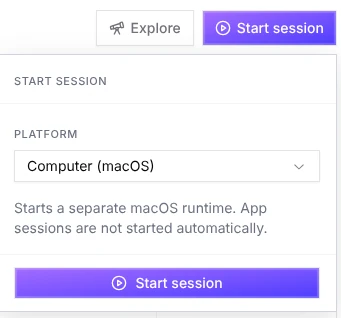
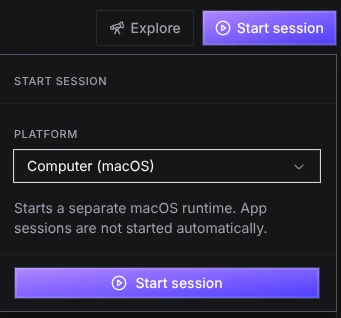
If you start a computer from a Web or iOS app's page, Revyl starts that app as an app session inside the computer once it's running. Computers appear in Sessions as Mac session, with the type Computer (macOS).
From the CLI:
revyl computer create --os macos --jsonThe response includes the computer's ID, which the other revyl computer commands take.
A computer runs for up to an hour from when you start it, and its Info tab shows when it expires. Starting one needs your organization's compute credits and a free device slot: a computer takes one slot from the same limit your iOS sessions use, and the app sessions inside it take none. Viewers can't start, use, or stop a computer.
Watch and control the desktop
While the computer runs, its page shows the desktop live. It's view only until you take control:
- Click the screen. The page shows You're in control.
- Use your mouse and keyboard on the computer.
- Click Release, or click outside the screen, to stop.
One person controls a computer at a time, and control ends after two minutes without input. Only people with the Owner, Admin, or Member role can take control. After the computer stops, its page plays the recording of the desktop when one was saved.
Run commands
Use the computer from the CLI with its ID:
revyl computer exec "$COMPUTER_ID" -- git status
revyl computer files write "$COMPUTER_ID" workspace/notes.txt --from notes.txt
revyl computer files read "$COMPUTER_ID" workspace/notes.txt > notes.txt
revyl computer process list "$COMPUTER_ID" --json
revyl computer get "$COMPUTER_ID"
While it runs, the Connect section of the Info tab has commands for that computer, ready to
copy. exec, files, and process commands time out after 30 seconds unless you pass --timeout,
which allows up to five minutes.
exec runs a program with its arguments, not a shell line, and keeps the first 1 MiB of output.
See the command reference for the commands, limits, and exit codes.
Run an app inside the computer
In the computer's Activity tab, under App sessions, click Start app session and pick an app and a build:
- A Web app runs in a browser on the computer.
- An iOS app, from one of the app's simulator builds, runs as an app session inside the computer, with its own session page, live stream, and video.
Start app session offers the platforms this computer can run. Web app sessions need a Web app, and Web is in alpha: to add it to your organization, email support@revyl.ai.
From the CLI, pass the computer's ID:
revyl device start --platform ios --app "$APP_ID" --computer "$COMPUTER_ID" --json
revyl device start --platform web --app "$WEB_APP_ID" --computer "$COMPUTER_ID" --json
The app launches with its defaults, so device choices, launch variables, and test-backed starts
aren't available inside a computer. Each app session has its own session ID, live stream, actions,
and report, and you stop it with revyl device stop. Stopping an app session
leaves the computer running; stopping the computer ends its app sessions. An app session's report
shows only the actions Revyl took, and commands you run on the computer can change the app too.
Reports and evidence
A computer's page keeps:
- Activity: each command, file read, write, or stat, and process action, with its outcome, and the computer's app sessions. Click a step to play the recording from that moment.
- The recording of the desktop, after the computer stops.
- Info: when the computer was created and when it expires, its ID, and the Connect commands.
Commands show as you typed them (up to 200 characters), with the credentials Revyl recognizes
replaced by <redacted>, so pass secrets in a file or on stdin rather than as arguments. Command
output and input are never shown. From the CLI, revyl computer get lists the same steps, and
revyl computer report --format json returns a summary without the commands.
To show a computer to someone outside your organization, click Share (Owners, Admins, and Members). Anyone with the link can watch the desktop live, view only, while the computer runs, and its recording after it stops, plus its details, its steps without command text, and its app sessions.
Stop a computer
Click Stop above the desktop and confirm Stop session. Its app sessions stop too, and its steps and reports are kept. From the CLI:
revyl computer stop "$COMPUTER_ID" --json