

Partners
Approve a partner connection
What a partner app asks for when it connects to your Revyl organization, and how to see connected apps.
A partner app can run Revyl for you: start sessions, run tests, and show you the results. It connects in one of two ways:
- It creates a workspace for you. If your email has no Revyl account, the partner app can create a Revyl organization and make you its Owner. No approval is needed, and the organization lists the partner under Connected apps. An organization the partner created stays tied to the partner's account: the partner can connect it again later, even after a disconnect, without a new approval.
- It asks to connect an organization you have. An Owner or Admin approves the request in Revyl. Nothing connects until someone approves.
The approval email
Revyl emails the request to the person who asked for it. If that person isn't an Owner or Admin of any of their organizations, Revyl emails the Owners and Admins of up to three of those organizations instead.
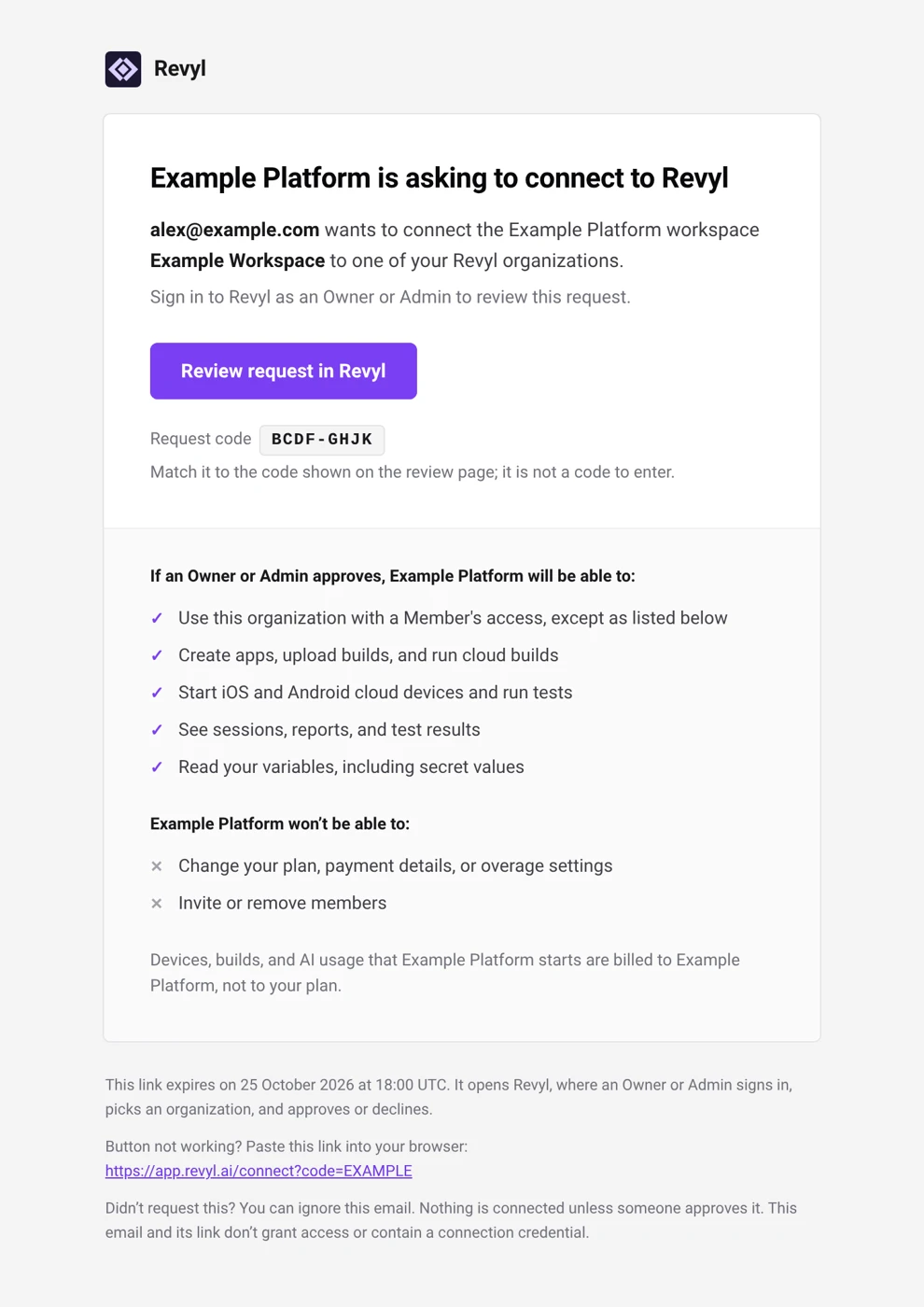
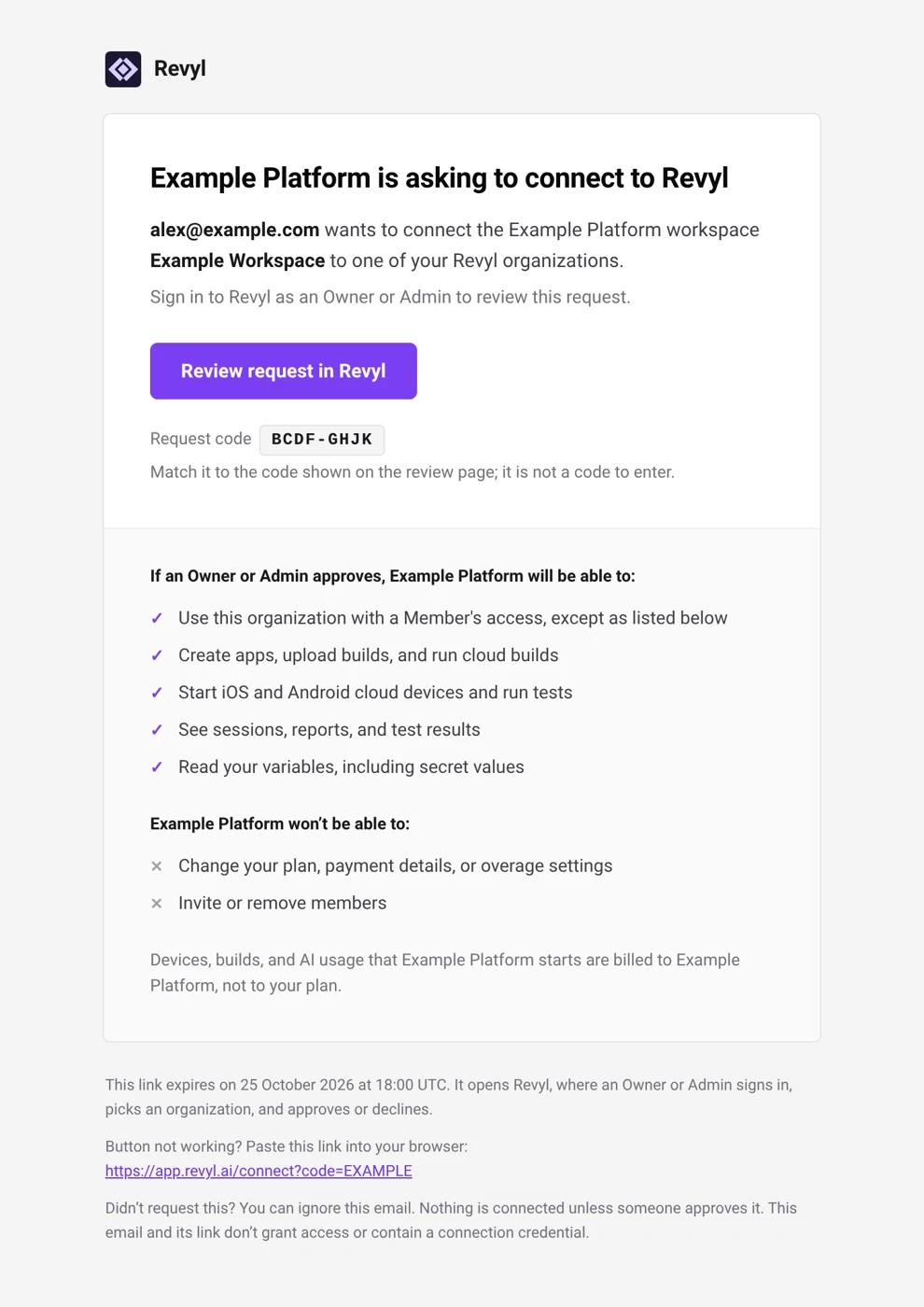
It names the partner, the partner's account, and the person asking, and it lists what the partner will and won't be able to do. The link expires after seven days, and Revyl sends one reminder after three days. The email and its link don't grant access or contain a credential, so you can ignore a request you didn't expect.
Approve or decline
Open the link
Select Review request in Revyl and sign in.
Check the code
Compare the request code on the page with the code the partner app shows. They should match. It isn't a code to type.
Choose an organization
Pick the organization to connect. You can choose one where you're an Owner or Admin, and that the person who asked belongs to, unless that person is you.
Decide
Select Approve or Decline. If you approve, the partner app picks up its access the next time it checks.
What the partner gets
If an Owner or Admin approves, the partner will be able to:
- Use this organization with a Member's access, except as listed below
- Create apps, upload builds, and run cloud builds
- Start iOS and Android cloud devices and run tests
- See sessions, reports, and test results
- Read your variables, including secret values
It won't be able to:
- Change your plan, payment details, or overage settings
- Invite or remove members
Devices, builds, and AI usage that the partner starts with its credentials are billed to the partner, not to your plan. Live sessions that visitors start from an app embed are billed to your organization. If your organization is on the Free plan, it moves to a partner plan while connected and returns to Free when the last partner disconnects. Sessions the partner starts share your organization's device concurrency. The sessions and reports it creates stay in your organization, where you and your team can open them.
See connected apps
Open Settings → Connected apps to see the partner apps connected to your organization. Each row shows the partner, how it connected (approved by a member, or created by the partner), when it was approved, when the partner finished connecting, and its status.
To end a connection, disconnect from the partner app, or email support@revyl.ai. When a partner disconnects, its credentials stop working and the sessions started with them stop. App embeds keep working until someone revokes them, which any member other than a Viewer can do from the app's Public embed settings. Your organization and its data stay.