

Tests
Workflows
Group your tests and run them in parallel
Workflows are named groups of tests that run in parallel as one unit: pick the tests, hit Run, and Revyl runs as many at a time as your workflow cap and organization's device concurrency allow. Workflows can be used to run regression tests on Pull Requests, run nightly tests, or define smoke tests. You can trigger workflows manually, from CI/CD, or via API to gate deploys, and use built-in stability tracking to see which tests are reliable versus flaky over time.
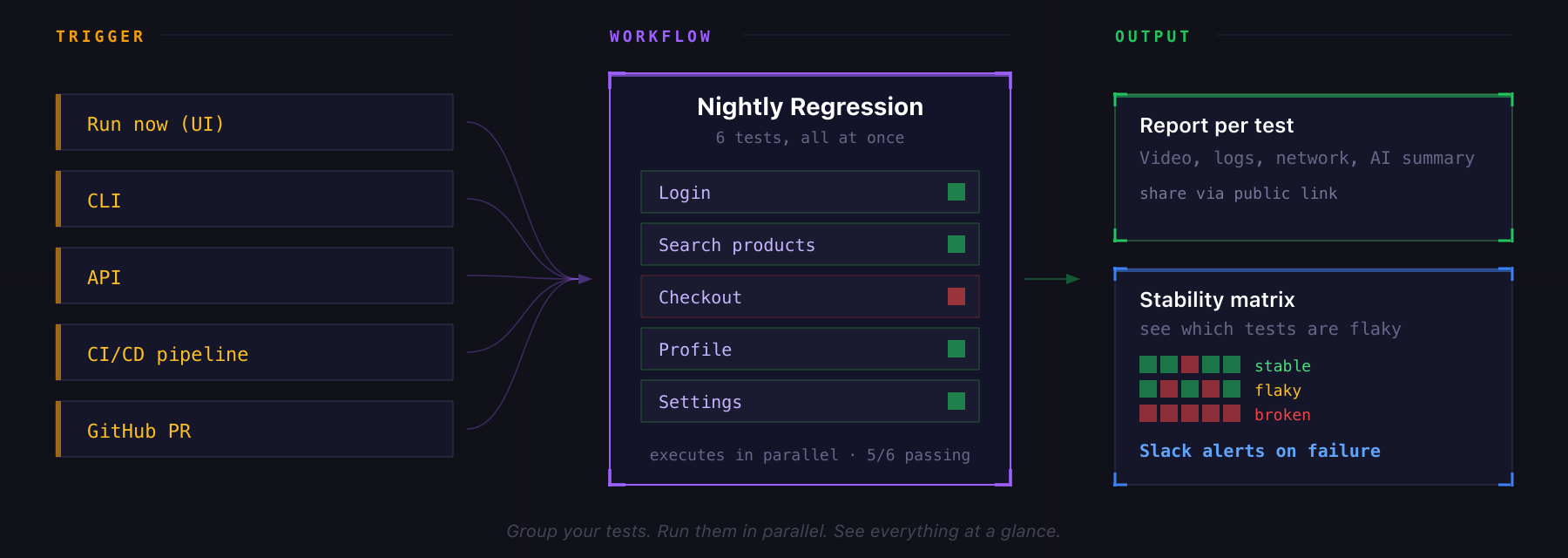
Creating a Workflow
- Go to Workflows and click Create workflow
- Name it (e.g.
Nightly Regression,Smoke Suite) - Pick the tests to include. Filter by platform or tags to find them quickly.
- Save
Running a Workflow
Trigger it any of these ways:
- Run workflow button on the workflow card or detail page
- CLI:
revyl workflow run <id> - API:
POST /api/v1/workflow-executions - CI/CD: from your pipeline, with
X-CI-*headers to attribute the run
Every selected test is submitted at once. A saved Concurrent tests per run cap limits how many tests run at once within each workflow run, across iOS and Android. A CLI or API run can override the saved cap for that run. When neither a saved cap nor a run-specific cap applies, only your organization's device concurrency applies. Most organizations use one shared limit across Android and iOS. Organizations with platform-specific capacity use separate Android and iOS limits, so a full Android queue does not consume an available iOS slot (and vice versa). Tests above the applicable limit wait in the queue and start as earlier tests finish, in submission order. A workflow is never rejected for size, and a second workflow submitted while one is running shares the same queue. Interactive device sessions are admitted ahead of queued workflow tests, so a person opening a device is not blocked by CI.
A workflow run completes only when every test finishes. The workflow is marked passing if every non-quarantined test passed, failing otherwise.
Workflow Settings
From the workflow detail page, configure:
- App Override: replace each test's app for iOS, Android, or both, with one Build choice per platform. A newly picked app starts on All branches · Latest build, so a pull request job can run another pull request's upload; choose Default branch so the job tries its own Git branch first (New saved choices). Off by default, so each test runs its own app and build; turning it off clears these choices. Choices you pass for one run don't change them.
- Location override: run every test with the same GPS coordinates.
- Concurrent tests per run: maximum concurrent tests within each workflow execution, across platforms. Set a positive whole-number cap, or turn it off for no additional cap. Save changes to apply them when future runs initialize; initialized runs retain their limit. This setting is independent of test configuration overrides.
- Test timeout: max duration for any single test in the workflow (1–180 min).
- Failure policy per test: mark individual tests as quarantined so their failures don't fail the workflow (useful for flaky tests you're still stabilizing).
- Slack notifications: route workflow results to a channel.
Configure concurrency from the CLI
revyl workflow config set regression --concurrency 12
revyl workflow config show regression --json
revyl workflow config set regression --concurrency 0
For a single run, use revyl workflow run regression --concurrency 4.
This overrides the saved default without changing it. Omit the flag to inherit
the saved default, or pass --concurrency 0 to use only organization capacity
for that run. The override also works with --no-wait.
On workflow config set, --concurrency 0 removes the saved workflow cap. Organization capacity still applies.
JSON output includes default_concurrency_limit, either a positive integer or
null for no additional cap. You can combine --concurrency with --retries in
one update; other saved settings are preserved.
Workflow Detail View
Four tabs:
- Tests: the tests in this workflow, with per-test quarantine toggle
- History: every execution, with pass/fail trend chart
- Stability: a matrix showing which tests are stable, flaky, or broken over recent runs
- Settings: the overrides above
Top-line metrics: total executions, successful runs, failed runs, and average pass rate, all with week-over-week deltas.
Related
- Reports: every test in a workflow produces its own report
- Slack integration: configure failure alerts
- CLI: trigger workflows from your terminal or CI