

Tests
Reports
Every run produces a report: video, timeline, performance, network, and logs
Every test run generates a report. You get the full video recording, a step-by-step timeline, and deep inspection of what happened on the device: performance metrics, network traffic, and device logs.
Page Layout
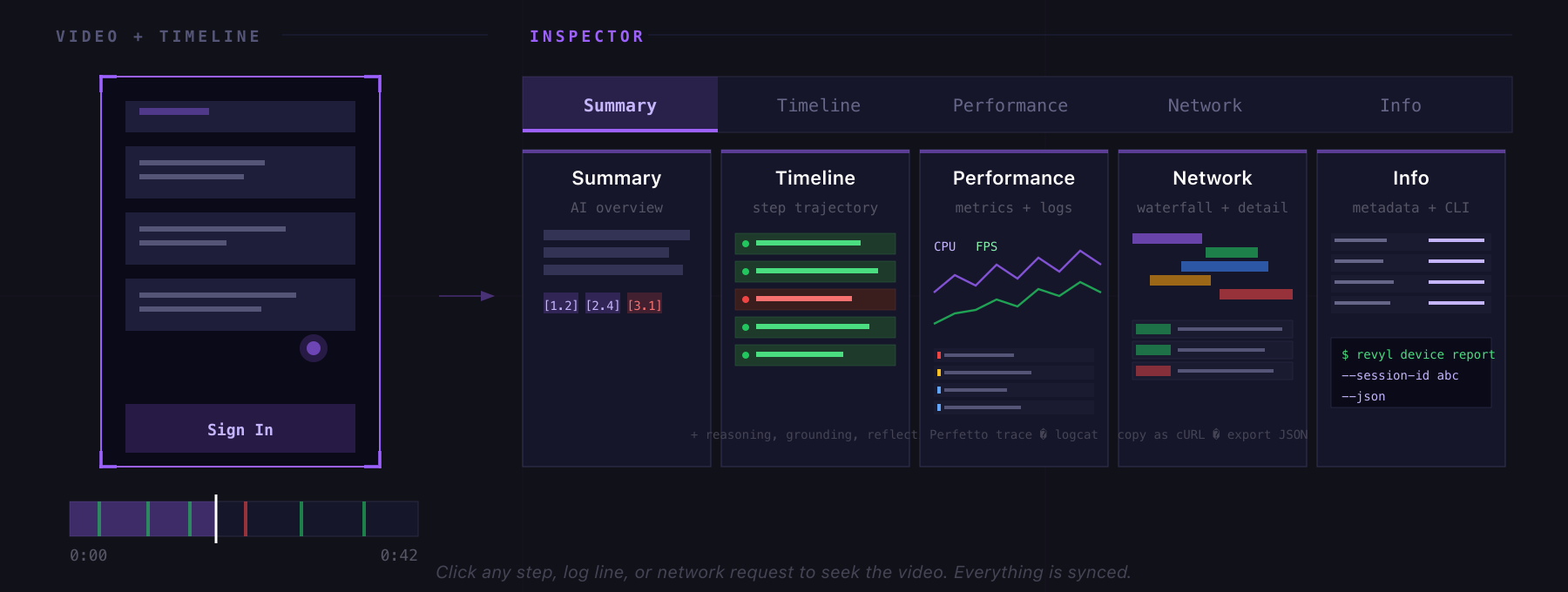
The report has a video player on top (with a scrubbable timeline underneath spanning the full width) and a tabbed inspector on the right. Click any step in the timeline or any log/request to jump the video to that exact moment.
Tabs
Summary
An AI-generated overview of the run: what the test was trying to do, plus a numbered list of key moments. Each moment has a clickable reference (like [3.2]) that seeks the video. Failures get a dedicated call-out.
Timeline
The step-by-step agent trajectory. Click any step to see the full details in a focus panel: AI reasoning, timing, grounding screenshot (the bounding-box the agent targeted), reflection feedback, and structured action data (what it tapped, what it typed, etc).
Navigate with arrow keys. Use [ and ] to jump between failures.
Performance
Split view with a hardware metrics chart on top and device logs on the bottom.
Hardware Metrics - toggle any of these series on the chart:
- CPU % - app CPU usage
- FPS - frame rate
- App RSS - resident set size (MB)
- App VSS - virtual size (MB)
- System Mem % - overall device memory pressure
- JS Heap - JavaScript heap in use (Web reports only; Web is in alpha)
The chart is synced with the video: click anywhere to seek. Step executions appear as shaded regions (red for failures). Memory warnings and app terminations are marked as dashed lines. Drag to zoom a time range, which also filters the logs below.
Peak CPU, peak memory, and average FPS are shown at the top. For Android runs, download the full Perfetto trace and open it in ui.perfetto.dev for frame-level profiling.
Device Logs (Web (alpha) console and request failures / iOS syslog / Logcat) - color-coded by severity:
- Filter chips for Error, Warning, Info, Debug (with counts)
- Free-text search across log content
- Click any line to seek the video
- Copy filtered lines to clipboard
- Download the captured log archive
The currently-playing log line highlights purple and auto-scrolls with the video.
iOS runtime diagnostics
Revyl captures ThreadSanitizer, AddressSanitizer, and UndefinedBehaviorSanitizer findings from iOS simulator builds compiled with the corresponding sanitizer enabled. Main Thread Checker also runs automatically for these builds. Upload an instrumented build to use this capability; a standard build does not enable sanitizer diagnostics.
When findings are available, expand Runtime checkers in the Performance tab to see grouped findings and occurrence counts. Expand a finding to inspect its stack traces and diagnostic excerpt. Click an available observation time to jump to that point in the video; repeated findings show first and last observation times. These times are approximate.
No findings does not guarantee an issue-free app: diagnostics depend on build instrumentation, capture availability, and the code exercised during the run.
Network
All HTTP and WebSocket traffic from the device, classified and filterable.
Top bar: filter by request type (API, Img, Script, Auth, Font, Media, Doc, WS, Other) and search by URL.
Waterfall: timeline of requests as colored bars. Drag to zoom a time window, which filters the table below.
Request table: every request with status, type, size, duration, and video-relative timestamp. Click a row to:
- Seek the video to that request
- Open a detail pane with tabs for Headers, Payload, Preview (images/fonts/media), Timing (DNS/Connect/TLS/TTFB breakdown), and Response
- Copy as cURL to reproduce the request locally
Footer shows total requests, bytes transferred, and failed count. Download the full network_requests.json.gz for offline analysis.
Info
Metadata grid with copy-to-clipboard on every value:
- Execution Details: timestamp, duration, platform, validations passed
- App Information: app name, resolved branch, and the version label of the exact build (clickable, link to the App and Build)
- Device Information: device type, resolution, runtime, platform
- Test Information: test name, test ID, execution ID, trace ID, and test version (open the YAML of blocks as they existed at run time)
- CLI snippets:
revyl device report --session-id <id> --jsonto fetch the report data for scripting
Video Player
Spacebar to play/pause. Click the timeline to scrub. Use F to toggle fullscreen. Press H to cycle playback speed (up to 8x on most browsers, 2x for Android on Safari).
Toggle the action overlay to see taps, swipes, and text input animated on top of the video as they happened.
Sharing
Click Share in the header:
- Team link: requires login, sends the recipient straight to the report in-app
- Public link: anyone with the link can view without logging in. Choose expiration: 1 day, 7 days, 30 days, 90 days, or never. Delete or regenerate at any time.
Exports
| What | Where | Format |
|---|---|---|
| Device logs | Performance tab toolbar | .txt or .txt.gz |
| Perfetto trace (Android) | Hardware metrics chart header | .perfetto-trace |
| Network requests | Network tab footer | .json.gz |
| cURL for any request | Network detail → Headers tab | Clipboard |
| Log lines | Performance tab toolbar | Clipboard |
Keyboard Shortcuts
| Key | Action |
|---|---|
Space | Play / pause |
← / → | Previous / next step |
[ / ] | Previous / next failure |
F | Fullscreen |
H | Cycle playback speed |
1 / 2 / 3 | Switch tabs |
Accessing Reports
- From Tests, click any test row, then View Runs for historical reports
- From the test editor, click the history icon
- From a workflow run, click into any test result