

Atlas
Atlas
Your app's behavioral record: every screen, state, and transition Revyl has observed, with the evidence behind each, for people and agents to query.
Atlas is the record of how your app behaves. Every test, workflow, session, and exploration that runs in a Revyl session adds what it observed: screens, their states, and the actions that move between them, each tied to the screenshots and report it came from. It maps Web, iOS, and Android apps the same way.
The record belongs to your organization. People open it in the dashboard, and coding agents
query it with revyl atlas and the Atlas skill. Use it to check coverage, follow a product
flow, or find the path to a screen before you change it or write a test.
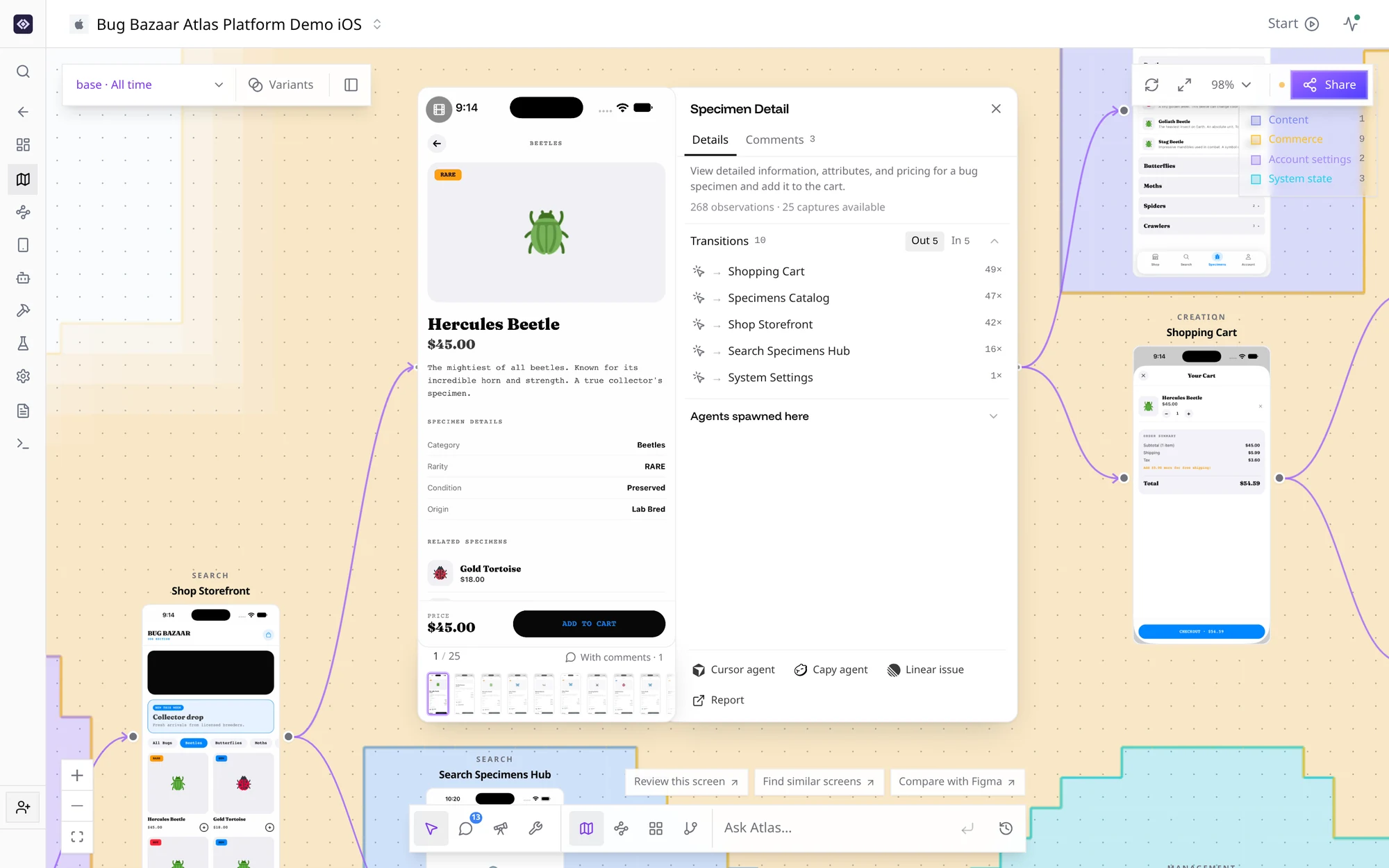
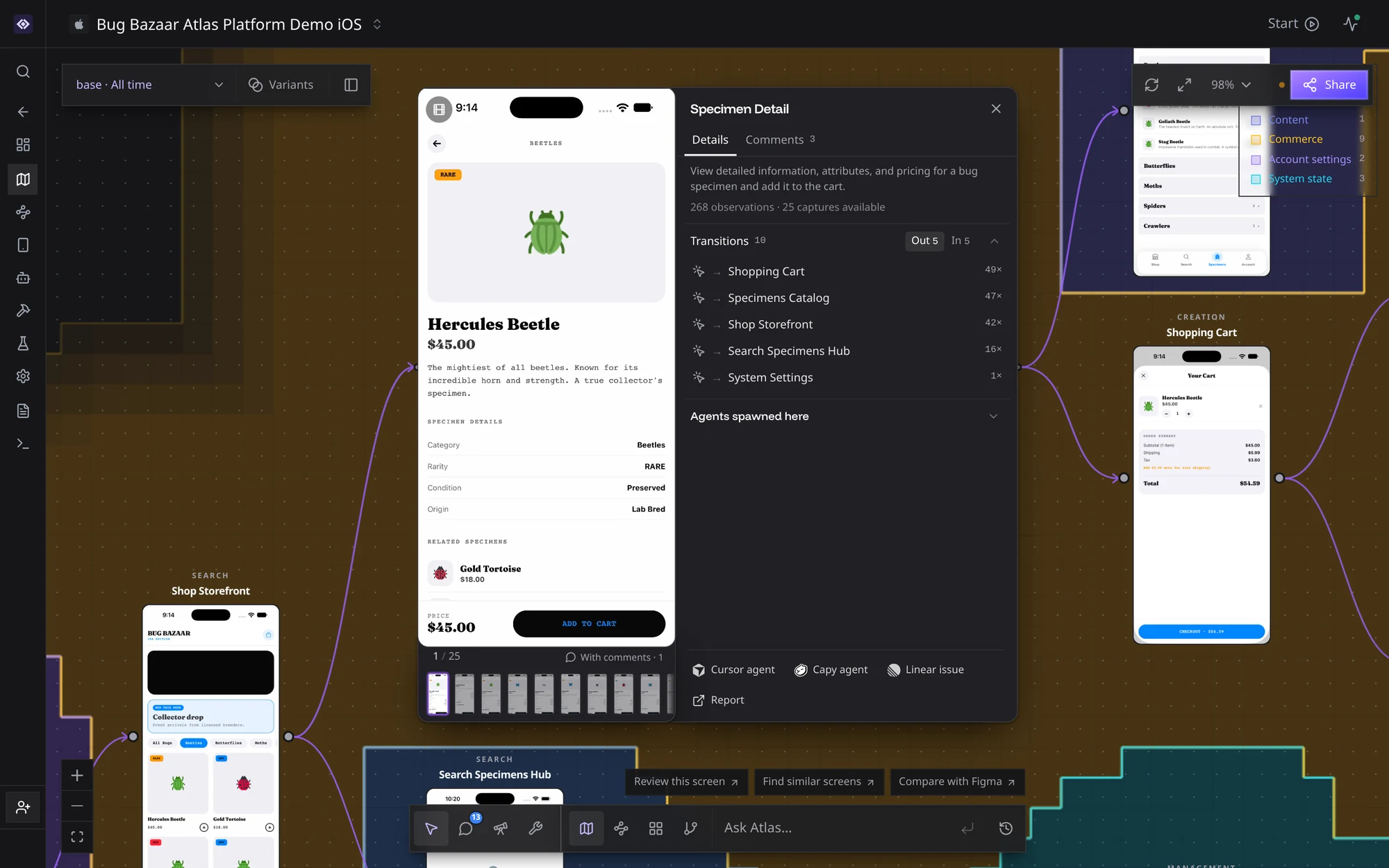
Atlas only shows what Revyl has seen. Each screen carries the screenshots and evidence it came from, so the map reflects what actually ran, not what was designed.
Open the map
In the dashboard, open an app and select Atlas. From a report, use the Atlas action to open the map filtered to the app and build that produced the run. A proof of changes write-up links to Atlas scoped to the build it exercised.
A new build has no Atlas data until a test, session, or exploration runs against it. After a run finishes, the map can lag briefly while the report is processed.
Read the map
Atlas groups screenshots of the same place in your app into one screen, even when the content changes, so the map stays about your app's structure rather than each user, list item, or loading state.
- A variant is a state of a screen: loading, empty, logged out, error, a permission prompt, or populated.
- An observation is one real screenshot and action from a test run or session.
- A transition is a path between screens, usually tied to the tap or swipe that caused it.
- A product area groups screens that belong together, such as onboarding, checkout, or settings.
- Coverage is the set of screens and transitions a test, workflow, session, build, or time window touched.
Use Map to see how screens connect and Grid to scan screenshots quickly. Show variants expands each screen into its observed states, Heat colors screens by how often they were observed, and Clusters draws product areas behind the graph. Select a screen to open the details panel with its screenshots, variants, evidence, and transitions in and out.
Narrow the map
Atlas opens on All branches and Recent 20, the 20 most recently uploaded builds in scope, unless a link selects a branch or build. Pick a branch, then narrow by time window, build, device model, or runtime. Share links keep the scope you picked.
Branch filters apply to evidence, transitions included. Merging, hiding, or re-rooting a
screen applies to every branch. Observations without a known build show only under
All branches. To compare main with a feature branch, see
Compare two branches.
Web apps
Web is in alpha. To add it to your organization, email support@revyl.ai.
For a Web app, each node is a page, drawn from its full, uncropped capture instead of a phone frame. Everything else works the same: variants, observations, transitions, coverage, and the CLI. Web explorations need Web and the separate Web exploration feature enabled for your organization; see Web exploration.
Fill gaps in coverage
When a product area is missing screens you expect, run an exploration. Explorers launch in parallel against a build you choose and add what they find to the map. Then write tests for the paths that matter so later runs keep them covered.
Keep main current
Feature-branch builds and merged pull requests don't move evidence into main or
staging. To keep a shared branch's map current, explore the exact build for that
branch after each merge or on a schedule. The
CLI recipes cover post-merge CI,
weekly CI, and cloud AI agent automation.
Use Atlas from the CLI
revyl atlas reads the same record from your terminal or a coding agent. You can search for
screens, walk a screen's neighbors and transitions, compare two builds, and pull a brief
for an agent. See Atlas from the CLI.
To make this the default for Cursor, Claude Code, Codex, or another coding agent, install the Atlas skill. It has the agent open the real screenshots before it describes a screen.
revyl skill install --name revyl-cli-atlasGood to know
- If the map is empty, check the branch, switch to All branches, and widen the time window. If nothing appears anywhere, run a test or session and wait for the report.
- If the graph is too broad, narrow it by branch, build, report, device model, or runtime.
- If a screen looks duplicated, compare its variants and observations in the details panel.
- Merges, hides, and identity changes are app-wide, so they change the map on every branch.