

Runtime / Mobile
Mobile quickstart
Run your own iOS or Android app on a cloud device and verify a change.
Run your own iOS or Android app on a cloud device, make a visible change, and check the result. Use a Git checkout of your app and a Revyl account with build credits and an available device slot. The remote path below needs no local Xcode or Android SDK.
Set up with an agent
Paste one prompt and your coding agent does the rest.
Setup prompt
Run this mobile app on a Revyl cloud device and verify one visible change.

Read https://docs.revyl.com/devices/quickstart.md and follow it. It's the current Revyl guide for this, so prefer it over anything you remember about Revyl.

Use iOS if the project supports both platforms, or Android for an Android-only app. Initialize the config and set the selected recipe's app_id. Use Expo's preview profile for a standalone build. Build with `revyl build --platform ios --profile <profile> --json`, then start the returned build_version_id with `revyl device start --platform ios --build-version-id <build-id> --json`. Give me the viewer_url, take a screenshot, and run one validation of the changed behavior. Stop only the session you started.

You're done when you've shown me the screenshot and validation result, and stopped the device session.

Ask me before anything that needs my login or approval.
The examples use iOS. For Android, use android wherever a command or config
key says ios, and upload an APK instead of a simulator app.
Building your own Appium, Maestro, or CI harness? Start with the device infrastructure quickstart instead.
1. Install and sign in
curl -fsSL https://revyl.com/install.sh | sh
export PATH="$HOME/.revyl/bin:$PATH"
revyl auth login
Open the approval link and approve the login. On a cloud agent, give that link to the person signing in. See installation and authentication for other methods.
2. Set up your app
From your app's project directory:
revyl init -y
revyl app create --name "My mobile app" --platform ios --json
init -y writes .revyl/config.yaml without the interactive setup wizard.
The second command creates a Revyl app and returns its id; it does not edit
the config. If you already have an app, use revyl app list --platform ios
instead.
In the generated config, set build.profiles.<profile>.ios.app_id to that
app ID. Keep the profile's build commands and output path, and review them
against your framework guide. Use a development profile for
hot reload, or a standalone build profile for this walkthrough. For Expo,
choose the generated preview profile: it runs without Metro or Expo
credentials. Then check the config:
revyl config validateiOS needs a simulator .app or zipped .app, not an .ipa. Android needs an
installable APK; if it contains native libraries, include x86_64 or
arm64-v8a. See artifact requirements.
3. Build the version you want to verify
Make your change, then replace YOUR_PROFILE with the build profile name in
your config (preview for Expo):
revyl build --platform ios --profile YOUR_PROFILE --jsonRevyl builds the app in the cloud and uploads the result. Wait for the command
to finish with status: "success", then copy build_version_id from its JSON
output. A build_job_id identifies the build job, not the installable build.
4. Start and open the live session
Use the build ID from step 3:
revyl device start --platform ios --build-version-id YOUR_BUILD_ID --jsonThe session installs and launches that exact build. Save its session_id and
open viewer_url from the response. The CLI opens the viewer automatically
when a local browser is available; a cloud agent should share the link with
you. You and your agent can watch the same device. See
device controls for taps, typing, and navigation.
5. Verify a change
Use the session_id from step 4, and replace the validation sentence with
the visible result you expect:
SESSION_ID="YOUR_SESSION_ID"
revyl device screenshot --session-id "$SESSION_ID" --out after.png
revyl device validation --session-id "$SESSION_ID" "The app's home screen is visible." --json
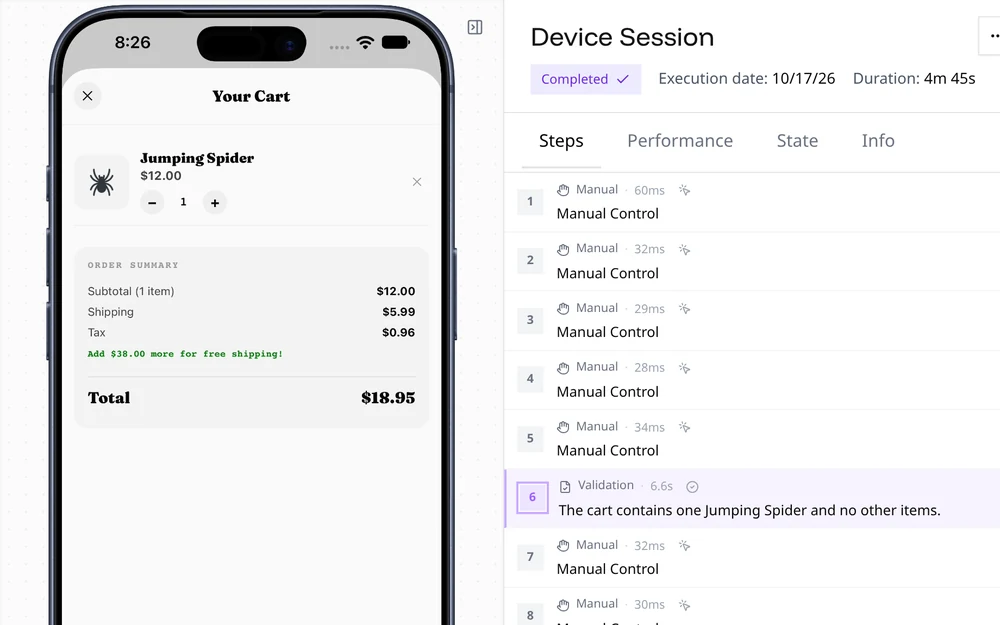
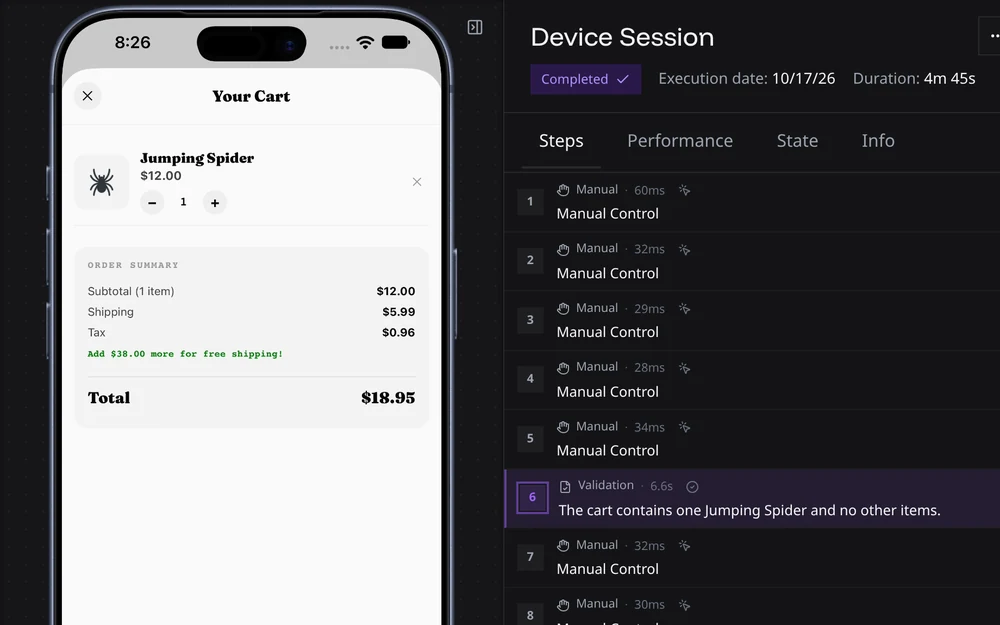
Open after.png and inspect it. The validation runs one natural-language
check on the device; a failed or missing verdict makes the command fail.
A saved screenshot alone is not a passing validation. Keep screenshots and
test data free of credentials and personal information.
6. Stop
revyl device stop --session-id "$SESSION_ID"Stop your session even if verification fails. Do not use --all in a shared
organization.
Next
- Dev loop: keep a device open while you edit, hot reload, and rebuild.
- Framework guides: the recipe for your app.
- Sign-in and session prep: start in the state you need.
- Troubleshooting: diagnose device and action failures.